Getting Started
Get up and running in just a few minutes. Caiioo works on Chrome, Safari, Edge, macOS, Windows, Linux, iOS, and Android.
Install Caiioo
Pick your platform:
Chrome or Safari Extension
- Go to the Chrome Web Store (or App Store for Safari) and search for Caiioo
- Click Add to Chrome (or enable the extension in Safari settings) and confirm
- Click the Caiioo icon in your toolbar to open the sidepanel
macOS App
- Download Caiioo from the App Store or our website
- Open the app—it'll open in your dock
- The app includes built-in browser automation and calendar integration
Windows or Linux
- Download the app installer from our website
- Run it and follow the setup steps
- The app runs a local server for browser control and more
- Auto-update starts with v0.9.717+
iOS or Android
- Download the Caiioo app from the App Store (iOS) or Google Play (Android)
- Sign in with your account to sync conversations from other devices
- Everything syncs via encrypted cloud backup
Your First Conversation
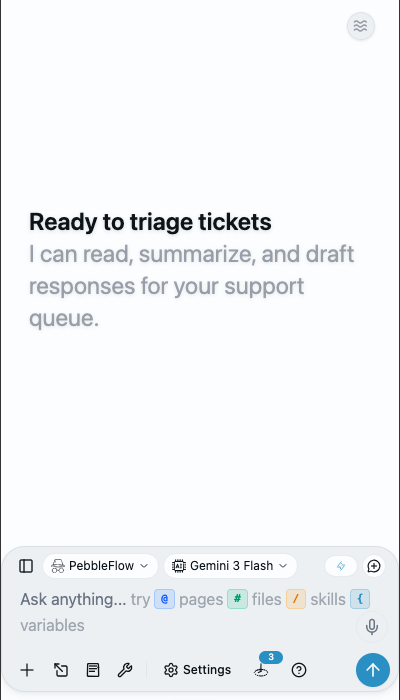
- Open Caiioo (browser extension, desktop app, or phone)
- Sign in with Google, Apple, Microsoft, or email
- Pick an AI model — bring your own API key (OpenRouter for 500+ models, Google AI, or local Ollama), or start immediately with our free provisioned key
- Type a message and press Enter
- The AI responds and can use tools (like web search, file reading, or calendar access) automatically
That's it. Caiioo handles all the AI orchestration behind the scenes.
Simple Mode (New Default)
Simple Mode is now the default for new users (v0.9.720). On first run, you'll see:
- A visible model picker (always available)
- A compact stat strip: context-window ring + total tokens + cost + remaining credit
- Hidden per-message token/cost, compression dropdown, and tab-context indicators
Click the eye icon to reveal or hide the full detail strip.
Zen or Studio
The pill at the far right of the header switches how much the app shows you.
- Zen Mode (the default) keeps the screen quiet — message buttons appear when you hover or tap a message, and per-message model badges stay out of the way.
- Studio Mode turns everything on: model badges, per-message detail, telemetry, and diagnostics.
Press ⌥⌘Z for Zen and ⌥⌘S for Studio (Alt+Ctrl+Z / Alt+Ctrl+S on Windows and Linux). Settings has the same pill and follows your choice.
The Settings Panel
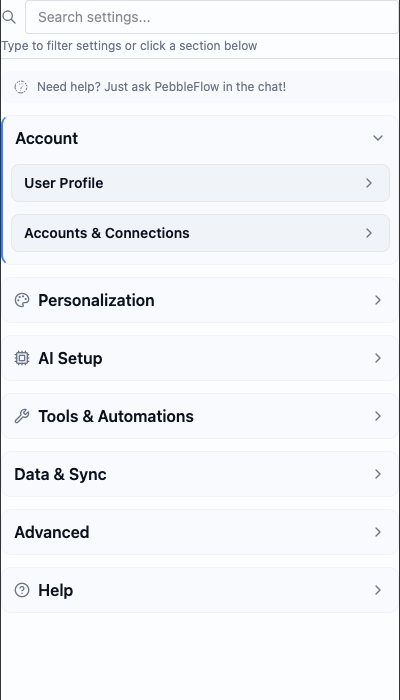
Click the gear icon to customize things. The full settings view is organized into nine categories:
| Category | What's Here |
|---|---|
| Account | User Profile (your account, plan, and profiles), Team, and — for a team leader or an organization admin — Team settings or Org settings |
| Preferences & Privacy | Appearance (theme, font size, Minimal settings toggle), Personalization (including Location Sharing and custom variables), Pseudonymizer, Privacy & Diagnostics, Data sharing & permissions (which tools may run without asking, and who may receive your data) |
| AI Setup | AI Provider (your API keys and provider accounts), Model Configuration (default model, creativity, max steps), Voice |
| Apps & Skills | Community Hub (find apps, and the ones you installed), My Apps, Agent Modes, Skills Library, Cards, Views, Template Attachments |
| Connectors | Every service and AI provider Caiioo can reach for you — signed-in accounts, AI model accounts, API keys, custom connectors (MCP), desktop helpers — with Discover for what you can add |
| Tools & Integrations | Tool Configuration, Workflows, Scheduled tasks, Document Processing, Learned Pages, Web Cleanser, Self Checker |
| Data | Backup & Restore, Shared pages (everything you've published to the web), Data Management |
| Connectivity | Devices & Relay (Private Relay and Caiioo Bridge), Private Sync, Private Constellation (Multi-device Continuity), API Access, Messaging Gateway |
| Help | Documentation & Legal (this guide, privacy policy, terms), Support & Diagnostics |
Minimal settings: New users start with a simplified settings view that shows only the essentials. Turn the Minimal settings toggle off (in the Appearance section — listed under Account while Minimal settings is on) to see everything, including power-user controls.
Tip: You don't need to dive into all these settings right away. Caiioo comes pre-configured with sensible defaults. Customize as you go.
Team Settings and Org Settings
If you lead a team, Settings > Account has a Team settings section. If you're an admin of an organization, it has Org settings. Nobody else sees either one. Click the section's title to open it.
It shows:
- The current policy — its version and when it was published, Minimum disclosure, Minimum tool approval, and Trust boundary enforced. Until one is published it says No policy has been published yet.
- Admins — each admin's key, marked owner or admin
- Members — each member, with the fingerprint of their key
A trash icon beside a member (Remove member) removes them after you confirm; they need to rejoin. Only the owner can remove an admin (Remove admin), and that ends their access immediately.
Admitting a New Member
Only the owner can admit a new member. When someone joins, an admin's approval doesn't add them — it puts them in a queue for the owner.
- An admin sees the request under Waiting for the owner to admit. The owner sees it under Waiting for your approval, with the member, the fingerprint of their key, which admin verified it (verified by admin) and when
- The owner compares that fingerprint with the one on the member's own join screen
- The owner clicks Admit and confirms. You'll see Member admitted
Two things are flagged on a request so you don't miss them. Key change — replaces shows when someone who's already a member comes back with a different key: admitting replaces their old key, and the old key stops receiving the policy. This key was removed before shows when the owner's device removed that key earlier. A request that can't be admitted says Cannot be admitted, with the reason.
When the Owner Needs to Confirm the Member List
Sometimes a change to the member list can't be signed off automatically. The owner then sees Owner should confirm the member list, with a line saying why: for example The relay did not return a member list, so this device could not check it. Try again shortly.
- Read each member. Nothing is selected for you. The marks — New member, Previously recorded, Key changed and Not admitted by the owner — are hints only, because the relay chose what to show. Not admitted by the owner can't be selected
- Check each member you recognize, by their key
- Click Confirm selected and recover, and confirm. Everyone you left unchecked is left out and needs the owner to add them back
- You'll see Member list confirmed, and a warning if some members may still see the list as out of date until the next rotation
The owner also sees Removals this device made final — members an admin removed that the owner's device then made final on its own, each with the admin's key and when.
In-App Guide Search
Search the user guide from the Document menu (v0.9.717+). Results deep-link to caiioo.ai/guide.
Use Caiioo in a Browser on Another Device
You can use Caiioo in a browser on your phone, tablet, or another laptop, with everything still running on your main computer. Two options:
Remote access (works anywhere): In Settings > Connectivity > Devices & Relay, turn on Private Relay, copy the relay.caiioo.ai/app address that appears, open it in any browser on the other device, and sign in with the same account. No code needed; end-to-end encrypted.
Caiioo Bridge (same network, with a code):
- Go to Settings > Connectivity > Devices & Relay > Caiioo Bridge > Pair a device
- A 6-character code appears — valid for 5 minutes, single-use
- Open the same URL on the other device and enter the code
- Rate limit: 10 attempts per IP per minute
- Server restart re-pairs cleanly
If the address begins with https://, your browser warns once that the certificate is self-signed — it comes from your own computer, not the wider internet. Continue past the warning; without accepting it, secure features are unavailable on that device.
The desktop app stays on this computer by default. LAN access is opt-in via Settings > Connectivity > Devices & Relay. Tokens are only handed out to localhost requests even when LAN access is enabled.
Account Deletion
Want to delete your account? Go to the Account page on our website (also linked from the iOS app per Apple's requirement). This deletes:
- Your profile and display name
- Sign-in credentials (email/Google/Apple)
- AI credit balance
- Encrypted provisioned OpenRouter key
- Minimal audit logs are retained for security
Custom OAuth (Pro)
At Pro tier, Settings > Connectors > Add > Your own OAuth app lets you plug in your own Google Workspace OAuth client, your own Microsoft 365 OAuth client, or any generic OAuth provider. Useful when your org won't whitelist Caiioo's client ID.
This guide is maintained by the Caiioo team using Slate, our built-in editor.