Voice: Speak and Listen
Want the AI to read responses aloud? Or dictate messages instead of typing? Caiioo offers voice input and output—all configurable, some running locally on your device.
Voice Output (Text-to-Speech)
Have the AI read its responses aloud. Choose from:
| Option | Type | Quality | Setup |
|---|---|---|---|
| Browser Default | Local | Basic | Free, no setup |
| Kokoro Neural TTS | Local | High | Free, runs on your device |
| Google Gemini | Cloud | Natural | Add your API key |
| OpenAI (gpt-4o-mini-tts) | Cloud | Natural, steerable delivery | Add your OpenAI API key |
| ElevenLabs | Cloud | Premium | Add your API key |
| Cartesia (Sonic 3.5) | Cloud | Premium | Add your API key |
| Resemble.ai | Cloud | Excellent (voice cloning) | Add your API key |
Kokoro download size: The Kokoro model ships in two variants, and which one downloads depends on your platform. macOS and iOS load the smaller INT8-quantized model (~88 MB), while the extension/browser uses the larger full-precision WebGPU build (~330 MB). It's a one-time download.
Platform notes:
- iOS native Kokoro (v0.9.720+): Runs in the iOS host process via OnnxRuntime instead of WebView, fixing iPhone 13/14 crashes.
- macOS Kokoro: Streams sentence-by-sentence (within ~1s of pressing play) through the desktop helper process.
- Gemini TTS (v0.9.723+): Plays sentence-by-sentence, so audio starts after the first sentence instead of waiting for the whole reply to synthesize.
- OpenAI (v0.9.724+): gpt-4o-mini-tts with steerable delivery — ask for an accent, tone, or pace in natural language (e.g. "read this with a warm Irish accent") and the voice follows it. Uses the same OpenAI API key as the OpenAI LLM provider. A Voice style instructions field in Settings > AI Setup > Voice applies your style directive to every spoken reply.
- Cartesia (v0.9.723+): One API key powers both Sonic 3.5 (output) and Ink (input). There's no default voice—pick one in Settings > AI Setup > Voice before you enable it.
- ElevenLabs: Every ElevenLabs voice starts speaking as soon as it has something to say — including the expressive v3, which is selectable in the voice picker. The default voice model is Flash v2.5: ElevenLabs rates it equivalent in quality to the previous default, and it costs half as much per character.
- ElevenLabs v3 Conversational (v0.9.777+): Pick the v3 Conversational model in the voice model list for expressive, low-latency dialogue in more than 70 languages. ElevenLabs currently bills it at half the standard per-character rate, and Caiioo's cost estimates reflect that.
Latency: Gemini and OpenAI render the full reply before playback begins, so the first audio can lag a few seconds on longer responses — Settings > AI Setup > Voice shows a note when you pick one of them. For low-latency speech, choose ElevenLabs, Cartesia, or Resemble.
Playback speed: The speed slider (0.5×–2.0×) is applied by the provider for ElevenLabs (clamped to 0.7–1.2×) and Cartesia (clamped to 0.6–1.5×). Browser voices and Kokoro speed up locally. Gemini and OpenAI have no speed control of their own, so the slider is hidden while they're selected; Resemble.ai applies the speed on standard (non-streaming) playback. One exception: the ElevenLabs v3 models (v3 and v3 Conversational) can't change speed themselves, so Caiioo applies your speed during playback instead, keeping the pitch natural — the trade-off is that with the slider away from normal, they wait for the whole clip before starting to speak. At normal speed they still start right away.
Caiioo can pick a voice to suit the moment: when reading something aloud is part of a task, the AI can choose a voice, a speaking rate, and a speech model that fit the content — a different voice for a bedtime story than for a news summary — rather than always using your global voice setting. Your own settings remain the default for everything else.
To enable it:
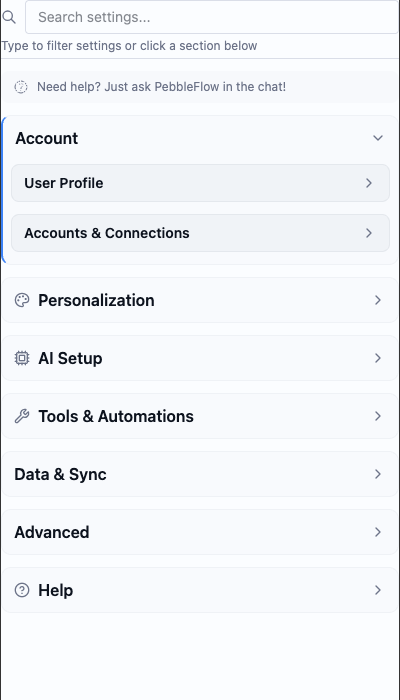
- Go to Settings > AI Setup > Voice
- Pick a text-to-speech option
- Toggle "Auto-read responses" if you want the AI to read automatically
- Adjust playback speed if you like
If playback fails: Voice errors now surface as a toast instead of failing silently—so a missing or invalid API key, or a voice that isn't compatible with the selected model (common with Resemble.ai and Cartesia), tells you exactly what to fix.
Local vs Cloud: Browser voices and Kokoro never send anything off your device. Gemini, OpenAI, ElevenLabs, Cartesia, and Resemble.ai send text to their servers (using your API keys) to generate the audio. See Privacy & Data for details.
Voice costs (TTS + STT) roll up as voice_cost on the conversation, matching the one-shot path.
Voice Input (Speech-to-Text)
Dictate your messages instead of typing. Click the microphone icon in the composer to start recording. Caiioo transcribes what you say and drops it into the message field.
Choose how it transcribes:
| Option | Type | Privacy | Setup |
|---|---|---|---|
| Whisper (Browser) | Local | Fully private | Free, runs on your device |
| WhisperKit (iOS) | Local | Fully private | Free, on-device |
| whisper.cpp & Moonshine (Android) | Local | Fully private | Free, on-device |
| Browser Speech | Local | Private | Free, built-in |
| ElevenLabs Scribe | Cloud | Accurate (great for non-English) | Add your ElevenLabs API key |
| Cartesia Ink | Cloud | Accurate, low-latency | Add your Cartesia API key |
Local options (Whisper, WhisperKit, whisper.cpp, Moonshine, Browser Speech) keep your audio local—nothing is sent to any server. ElevenLabs and Cartesia send audio to their servers for transcription (using your API key) and offer higher accuracy, especially for non-English languages.
To use it:
- Click the microphone icon in the composer
- Speak your message
- Stop when you're done
- The transcript appears in the message field
- Edit if needed, then send
First-time setup: The first time you use an on-device speech model, it has to download and warm up. The composer shows the progress ("Downloading speech model… N%", then "Preparing"/"Loading"), so a brief pause on your first mic tap is expected, not a hang.
Record Audio and Attach It
Besides dictation, you can record a clip and attach it to your message: open the composer's + menu and choose Record audio. Available on iPhone, iPad, macOS, and the browser extension. Pairs naturally with apps that listen to your recordings, like the "for Languages" pronunciation coach.
Let the Model Hear Your Recording
Two features go beyond transcription and let a model that can hear work with the actual audio:
- Include audio for the model (Settings > AI Setup > Voice): attaches your recording so an audio-capable model (e.g. Gemini) reviews the real audio alongside your prompt — tone, pronunciation, background sounds, not just the words. Off by default; nothing is sent otherwise. A waveform button next to the mic toggles it per message, but the button only appears in modes and apps that opt into it (like "for Languages"), so it doesn't clutter the composer for everyday tasks.
- Hearing (a free tool, on by default): lets the assistant go back and re-listen to any audio attachment with a targeted follow-up question — "which words were mispronounced?", "what's the tone of voice?" — on the turn you attach it or any later one. The dedicated audio helper model does the listening, so this works even when your chat model can't hear.
System-Wide Dictation (Desktop)
Dictate into any application on your computer — not just Caiioo:
Pro subscribers have system-wide dictation built into the macOS, Windows, and Linux desktop apps — no companion app to install. Hold the dictation hotkey anywhere, speak, and what you say is typed into whichever app has focus.
See Also
- Privacy & Data — How voice data is handled
- Platform & Setup — Desktop app availability
- Settings > AI Setup > Voice — Configure voice options for your setup
This guide is maintained by the Caiioo team using Slate, our built-in editor.