AI Providers and API Keys
Caiioo connects to 500+ AI models through a small set of providers. You bring your own API key — that means you pay the provider directly, and Caiioo never touches your spending.
Supported Providers
Eight providers are generally available today:
- OpenRouter (default) — a single key unlocks 500+ models including Anthropic Claude, Google Gemini, OpenAI GPT, Mistral, Groq, Llama, and more. This is the recommended path for most users — Caiioo's tools expect OpenRouter's model registry, and you only manage one key.
- Google AI — a direct connection to the Gemini API with your own Google AI key. Google offers a genuine free quota, so this is a real no-credit-card way to run a frontier model — with native thinking and up to 2M context. Settings walks you through getting a free key.
- Anthropic — a direct connection to the Claude API with your own Anthropic key, with native extended thinking alongside tool use. Create a key at console.anthropic.com, or let Caiioo create one after you approve access to your Claude account. The key bills to your Anthropic Console account; Caiioo doesn't keep the Claude sign-in used to create it. Anthropic doesn't allow a Claude Pro or Max subscription to be used in other apps, so Claude in Caiioo runs on a Console key or through OpenRouter, not on your subscription.
- xAI (Grok) — direct access to Grok models via api.x.ai. Connect with an xAI console API key, or simply sign in with your Grok account (SuperGrok or X Premium+ subscription) — approve access in the browser and you're connected, no key to copy. Note: xAI enables API access per account and subscription tier on their side; if chats fail with a permission error after connecting, use an xAI API key instead.
- OpenAI — a direct connection to OpenAI's models with your own OpenAI API key, or sign in with your ChatGPT account and Caiioo runs on your ChatGPT subscription instead of a key.
- CometAPI — 500+ models (GPT, Claude, Gemini, DeepSeek, and more) through one pay-as-you-go CometAPI key. The model picker shows benchmark-tier medals for its catalog, and total CometAPI usage is tracked in Settings.
- Poe — models from Anthropic, Google, OpenAI, xAI, Meta and others through one Poe API key, billed in your Poe subscription's points rather than per-token dollars. Your remaining point balance and what a thread has spent both show in the app. Get a key at poe.com/api/keys.
- Ollama — runs open-source models locally on your machine. Fully private, no internet required, free. Useful for offline work or when you want absolute control over inference. (Ollama Cloud also works with an optional API key.)
Direct connections to other providers (MLX, vLLM and more) are in testing and not yet generally available. For now, use those models through your OpenRouter key — that's what OpenRouter is for.
See Terms of Use for policies.
Get Started (Two Options)
Option 1: Use the Free Provisioned Key
We provide a free OpenRouter key that lets you try Caiioo immediately. It has access to select free models with usage limits — perfect for testing things out.
To keep using it: just open Caiioo and start chatting. No setup needed. Pro subscribers get an additional $5/month OpenRouter credit bonus auto-applied to this same key, on top of whatever balance is already there.
While you're on the included key, the OpenRouter key field in Settings says so instead of looking empty — you'll see a note that you're using Caiioo's account key and your remaining balance. Your keys are stored on your device; with Private Sync on, both the included key and your own OpenRouter key travel to your other devices inside your encrypted backup.
Credit-consuming tools—image, video, and music generation, advanced OCR, and Perplexity AI search—need OpenRouter credits, not just a key. On the free provisioned key these tools report "no credits." You have two ways forward: enter your own OpenRouter API key (BYOK) in Settings > AI Setup > AI Provider, or upgrade your Caiioo plan—a paid plan tops up this same provisioned key with credits each month, so these tools just work.
Option 2: Bring Your Own Key (BYOK)
Want full access without the free-tier limits? Add your own key.
OpenRouter (recommended):
- Sign up at openrouter.ai and create an API key
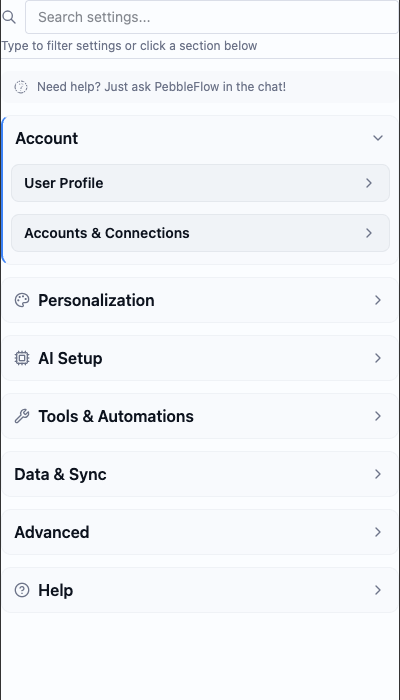
- Go to Settings → AI Setup → AI Provider
- Select OpenRouter and paste your key — or click Sign in with OpenRouter to connect your account without copying anything
- That's it — the key stays on your device and never reaches Caiioo's servers
Google AI (direct Gemini):
- Go to Settings → AI Setup → AI Provider and select Google AI
- Follow the guided "get your free key" steps (Google AI Studio issues keys free, no credit card)
- Paste the key — it stays on your device and requests go straight to Google
Anthropic (direct Claude):
- Go to Settings → AI Setup → AI Provider and select Anthropic
- Click Manage beside Anthropic credentials
- Click Create a key from your Claude account
- Approve access in the browser, paste the authorization code back into Caiioo, and click Connect
You can also click Add API key and paste a key you created in Anthropic Console.
Poe:
- Go to Settings → AI Setup → AI Provider and select Poe
- Create a key at poe.com/api/keys — the note under the key field points there too
- Paste the key into Poe API Key
Your point balance appears below the key. Conversation costs appear in both Poe points and dollars.
Ollama (local):
- Install Ollama from ollama.com and pull a model (
ollama pull llama3.2) - Go to Settings → AI Setup → AI Provider
- Select Ollama and confirm the server URL (default
http://localhost:11434) - Pick any model you've installed locally
When you pick a local chat model, AI-powered tools that would send your data to a remote AI provider prompt for your approval first. See Privacy & Data → Tools That Use Another AI Provider.
Quick Tasks Model
A separate, cheaper model that Caiioo uses automatically in the background for things like generating thread titles, classifying intent, picking which tool to call, and other short helper queries — you never prompt it directly. Configure it in Settings → AI Setup → Model Configuration (a small OpenRouter free model or a local Ollama model is plenty). If not set, the system falls back to your default model.
BYOA (Bring Your Own Auth) for Tools — Pro
BYOA is different from BYOK. It's not for LLMs — it's for tool connections (Google Workspace, Microsoft 365, GitHub, etc.). At Pro, Settings → Connectors → Add → Your own OAuth app lets you plug in your own OAuth client when your organization won't whitelist Caiioo's default client ID:
- Use Your Own Google OAuth App — walk through creating a Google Cloud project and pasting in the client ID + secret
- Use Your Own Microsoft Azure App — same flow for Azure-registered apps
- Add Custom OAuth Provider — generic OAuth 2.0 flow for any provider that supports it
The wizards save the credentials on your device. They never leave it.
Keep Several Accounts or Keys per Provider
Every provider can hold more than one credential — a work key alongside a personal one, or a signed-in account alongside an API key — with one of them in use at a time. No more overwriting a key and pasting it back later.
Manage them in Settings > Connectors: each provider is one row of type AI model, and opening it lists its accounts and keys. Or click Manage next to the provider in Settings > AI Setup > AI Provider. You can name each credential (e.g. "Work"), the active one carries an In use badge, and switching is one click on Use. Removing a credential from Caiioo revokes nothing at the provider — your account there is untouched, and you can add it again later.
API Key Security
Your API keys are stored locally on your device. With Private Sync on, your keys and connected provider accounts are encrypted on-device before they enter your sync backup, then decrypted only on your other devices. Caiioo servers never receive readable credentials. When you make a request, the device running the conversation sends its own active credential directly to the AI provider. See Privacy & Data for the full story.
Performance Depends on Your Model
Caiioo handles orchestration — tools, context, multi-step workflows. But the quality of the AI's responses comes down to which model you choose.
For complex tasks (research, analysis, long documents): use a frontier model — Claude Sonnet, GPT-class, or Gemini Pro — all accessible through your OpenRouter key. They handle multi-step reasoning and tool use best.
For quick answers (questions, summaries, simple edits): fast models — Claude Haiku, smaller GPT or Gemini Flash variants — are cheaper and faster. Perfect for everyday tasks.
For experimenting: OpenRouter lets you try 500+ models with one API key. Find what works best for your workflow without committing to a single provider.
The model picker describes capabilities for the provider actually serving each model and shows benchmark medals where measurements are available. A newly released or unmeasured model stays visible; it just doesn't carry medals yet. Cost totals use the serving provider's published rates; if Caiioo can't establish a rate, it leaves the cost out instead of estimating.
Two medals, two different questions. A model can carry a gold, silver, or bronze medal for either or both:
- Best for Caiioo ranks on capability alone. Price is not part of it, so a cheap fast model can't lead a column called best.
- Value for Caiioo is where price lives — the best quality you can get for what it costs.
Automatic routing follows the same split: the Value Router weighs cost, the other routers don't. What you see in the picker is what the app actually chooses by.
See the measurements behind the medals. Model Intelligence (Caiioo Benchmarks, Pro) compares quality, throughput, time-to-first-token, tool accuracy, and pricing, and spells out the methodology — where each number comes from and what the value score factors in. The rankings for each kind of task are published once and read by both the app and the leaderboard on caiioo.ai, so what routing chooses and what the leaderboard shows are the same thing. The leaderboard adds a Best by Use Case breakdown if you want to see which model leads for coding, research, or writing rather than only overall.
A note on the Creativity slider: the newest models (like Claude Sonnet 5 and later) manage their own creativity and don't accept a temperature setting. When you select one, the Creativity slider in Model Configuration is disabled with a short note — that's expected, not a bug.
For offline / fully-private work: Ollama runs open-source models on your machine. Slower than cloud frontier models, but nothing leaves your hardware.
Caiioo's tools, context layers, and orchestration amplify whatever model you pick. A good model becomes great when it has the right context and tools to work with.
See Also
- Subscriptions & Billing — Free and Pro tier features
- Privacy & Data — How keys are stored and handled
- Pseudonymizer & Privacy Filter — On-device privacy filter that swaps personal data before it reaches any model
This guide is maintained by the Caiioo team using Slate, our built-in editor.